
If you’re trying to listen to podcasts or music on your iPhone, it can be annoying when your AirPods keep switching to other devices, like your Mac or iPad.
Personally, I don’t mind this behavior. If I’m sitting at my Mac, I want to use the Music and the Podcasts apps on the Mac. But a lot of people consider their iPhone their primary device — and always want to play audio from their phone, no matter which other device they’re using.
If you want your iPhone to retain supreme control over your ears, here’s how to disable AirPods auto-switching.
Stop your AirPods from switching between devices
Apple’s smart features elevate AirPods above other wireless earbuds. They can instantly pair to your devices. You can get notifications on your iPhone when it’s time to pop them on a charger. And if you own a model with active noise cancellation (ANC), your AirPods can detect when people are talking to you and boost their voices while turning down your music.
Because they can take full advantage of the closed Apple ecosystem, AirPods also can seamlessly switch between devices as you sit down at your Mac or open your iPad. You don’t need to hold down a pairing button and wait for a blinking light to switch.
However smart this feature is, it bothers some people. If you like everything to play from your iPhone — and you find the AirPods switching to be annoying — it’s easy to turn off. Here’s how.
Table of contents: Stop AirPods from switching to other devices
- Prevent AirPods from switching to a Mac
- Prevent AirPods from switching to your iPhone or iPad
- More AirPods how-tos
Prevent AirPods from connecting to a Mac
Screenshot: D. Griffin Jones/Cult of Mac
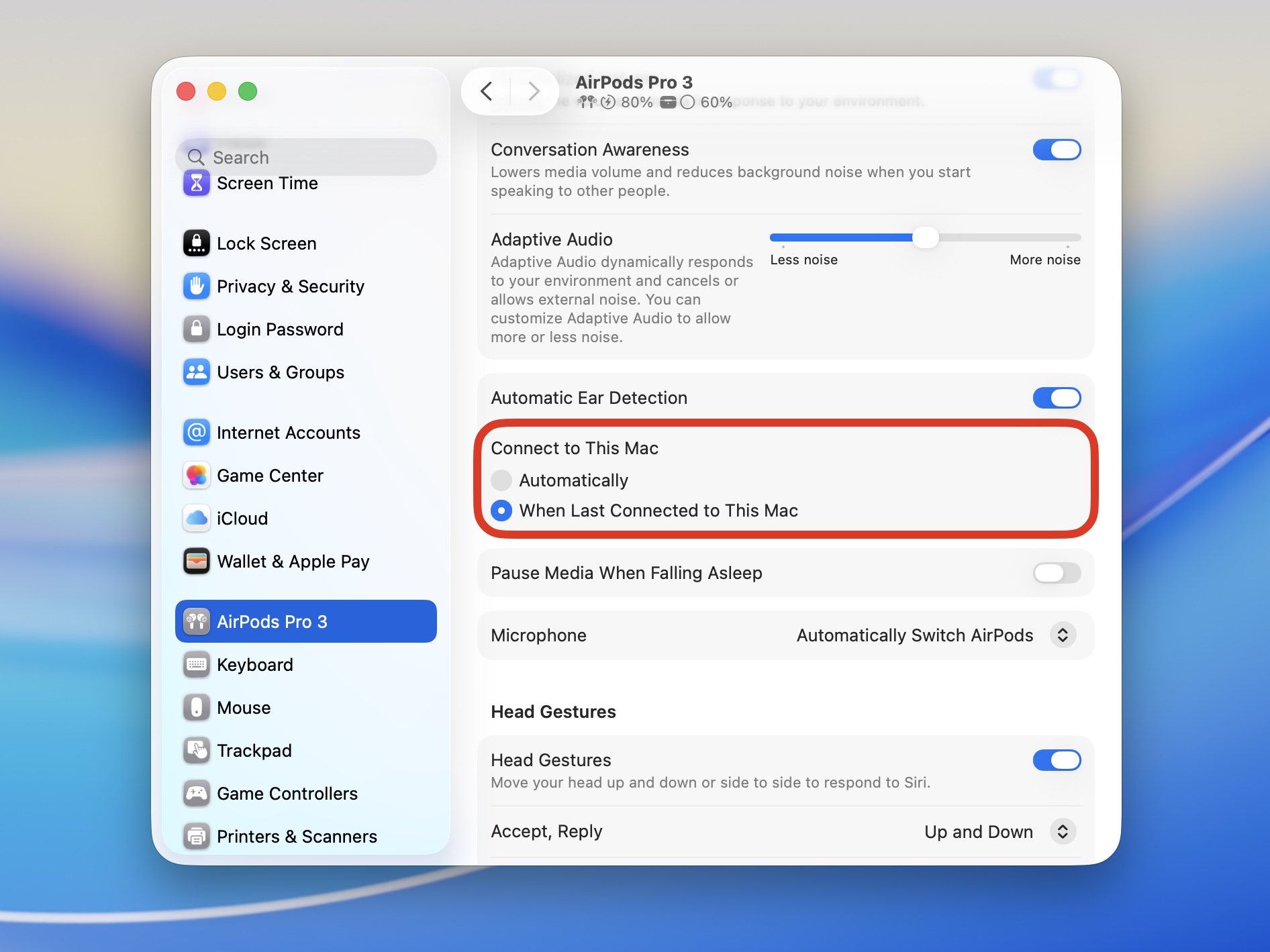
If you’re playing podcasts or music out of your iPhone and you sit down at your Mac, you might be annoyed that it suddenly stops and switches to the computer. It’s easy to turn off this behavior, although it’s a little counterintuitive.
First, connect your AirPods to your Mac. If, in a cruel bit of irony, it doesn’t happen automatically, you can open Control Center in the top right of your Mac’s menu bar, click the Bluetooth menu, and select your AirPods.
Then, open System Settings and scroll down in the sidebar on the left. Toward the bottom, you should see an option appear for your AirPods, just above “Keyboard,” “Mouse,” “Trackpad,” etc. In this menu, set Connect to This Mac from “Automatically” to When Last Connected to This Mac.
I use a giant speaker hooked up to my Mac, sitting below my desk. While I don’t use AirPods, I would definitely be irritated if music switched to playing out of the earbuds instead.
Prevent AirPods from switching to your iPhone or iPad
Screenshot: D. Griffin Jones/Cult of Mac
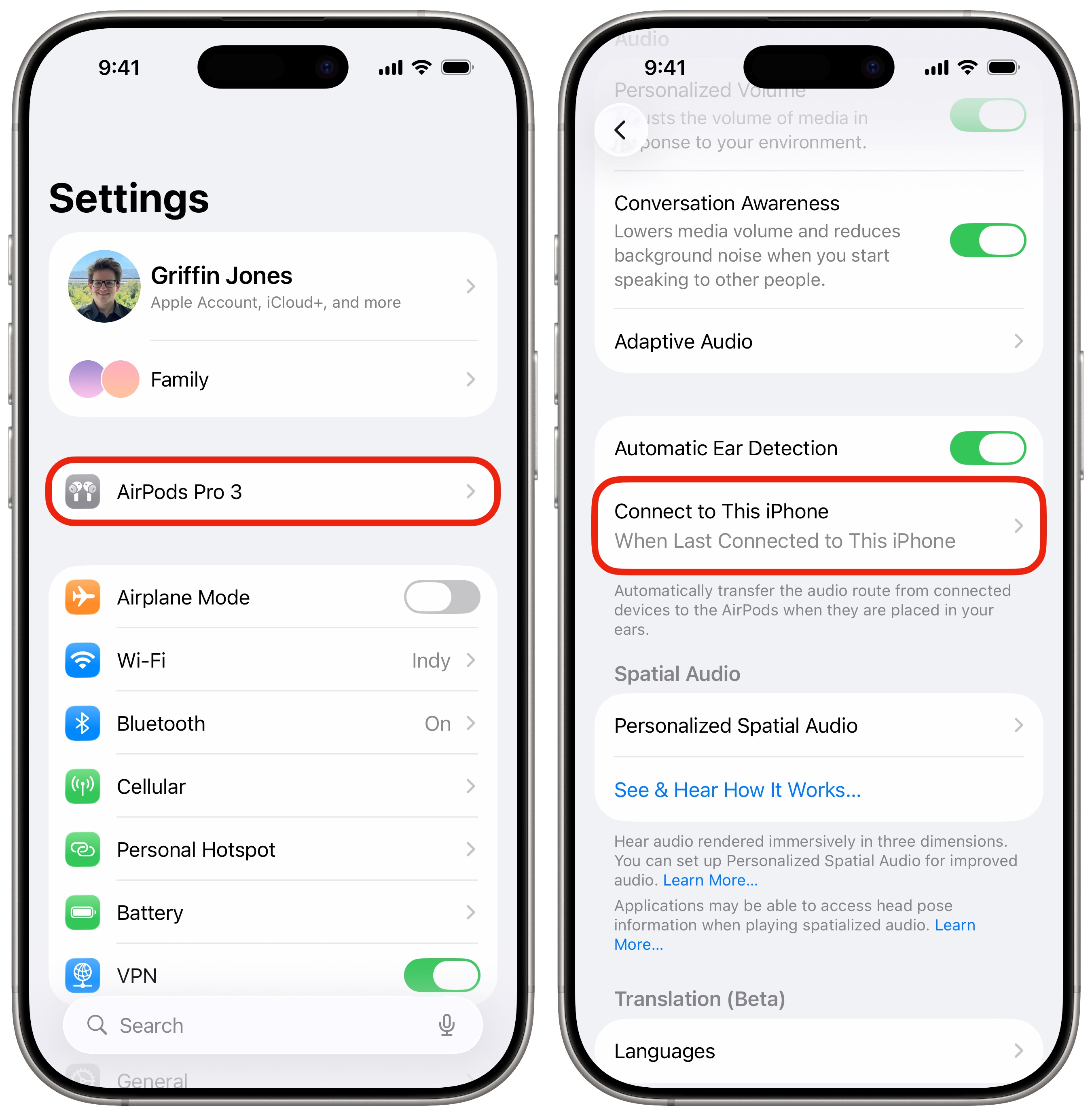
You can also keep your AirPods from switching to your iPhone or iPad. That’s great, because if you’re jamming out to tunes while you’re cooking dinner and happen to pick up your iPad to bring up a recipe, you certainly don’t want your AirPods to switch from your iPhone to the iPad. Luckily, you can disable that type of behavior as well.
Make sure the AirPods are connected to the device, then open Settings. You should see your AirPods at the top of the list (no scrolling necessary, as is inexplicably required on the Mac). Tap to bring up AirPods settings, then tap Connect to This iPad, and set it to When Last Connected to This iPad. (Do the same thing on your iPhone if you want to stop your AirPods from switching to your phone.)
More AirPods how-tos
To get the most out of your AirPods, you should check out our other articles:
This article on AirPods automatic switching was originally published on June 28, 2024. We updated it with the latest information on December 5, 2025.

D. Griffin Jones is a writer, podcaster and video producer for Cult of Mac. Griffin has been a passionate computer enthusiast since 2002, when he got his first PC — but since getting a Mac in 2008, he hasn’t turned back. His skills in graphic and web design, along with video and podcast editing, are self-taught over 20+ years. Griffin has a bachelor’s degree in computer science and has written several (unpublished) apps for Mac and iOS. His collection of old computers is made up of 40+ desktops, laptops, PDAs and devices, dating back to the early ’80s. He brings all of these creative and technical skills, along with a deep knowledge of Apple history, into his work for Cult of Mac.
Trending Products

Apple iPhone 12 Mini – Parent...
Apple iPhone SE 2nd Gen – Par...

Apple iPhone 7 32GB Unlocked AT&...
Apple iPhone 14 – Parent (Ren...
Apple iPhone 12 Pro Max, PARENT (Re...
Apple iPhone 8 64GB Unlocked –...
Apple iPhone 15 Plus 5G (512GB, 6GB...
Apple iPhone 14 Pro (Renewed)

Apple iPhone 15 Pro Max – Par...
