
Apple Intelligence makes Reminders more useful by letting users turn highlighted text into tasks directly from the share sheet. Instead of copying details by hand, selected text from emails, webpages, or notes can generate suggested reminders automatically.
When text is shared to Reminders, Apple Intelligence scans it for actions, dates, quantities, and instruction-style phrasing. The feature is designed to speed up capture when tasks are buried inside longer material, such as emails or articles.
Instead of skimming past action items and promising to come back later, users can highlight relevant text and send it straight to Reminders. The system then presents suggested tasks for review before anything is added to a list.
The feature does not replace manual reminders and still requires oversight. Its value comes from reducing the friction between reading something and turning it into something actionable.
What Apple Intelligence brings to Reminders
Apple Intelligence analyzes shared text for patterns that resemble tasks or requirements. It looks for phrasing that implies actions, deadlines, quantities, or step-by-step instructions that typically end up as reminders.
The system works best with structured or semi-structured writing, including recipes, project notes, technical instructions, and emails that contain lists of requests. Lines written as instructions or bullet-style statements tend to convert cleanly.
You can share anything from a short phrase to several paragraphs. Longer selections often generate multiple suggested reminders at once, which is where the feature saves the most time.
Reminders can also group imported items into sections, which becomes more useful as lists grow. People who previously bounced between apps while retyping tasks will notice the biggest improvement.
Casual or conversational writing usually produces weaker results. Clear source text leads to clearer suggestions.
Device support and setup
Apple Intelligence requires supported Apple Silicon hardware, which limits availability to newer devices. Compatible iPhone and iPad models, along with modern Macs, handle the on-device processing used for text analysis.
Language and region settings also affect availability. Apple Intelligence features only appear when supported combinations are enabled.
- Open Settings and choose “Apple Intelligence and Siri.”
- Turn on the Apple Intelligence features you want to use.
Once enabled, Reminders uses Apple Intelligence automatically. There is no separate toggle inside the app.
How to create reminders from text on iPhone and iPad
Open an email, webpage, or note that contains information you want to track. Highlight the relevant text, then tap the Share button that appears above the selection.
- Open an email, webpage, or note with details you want to save.
- Highlight the text you want analyzed.
- Tap the Share button above the selection.
- Choose Reminders from the share sheet.
- Review the suggested tasks.
- Add the items you want and select a destination list.
A suggestion panel appears with reminders pulled from the selected text. Ingredient lists, bullet points, and numbered steps usually convert cleanly.
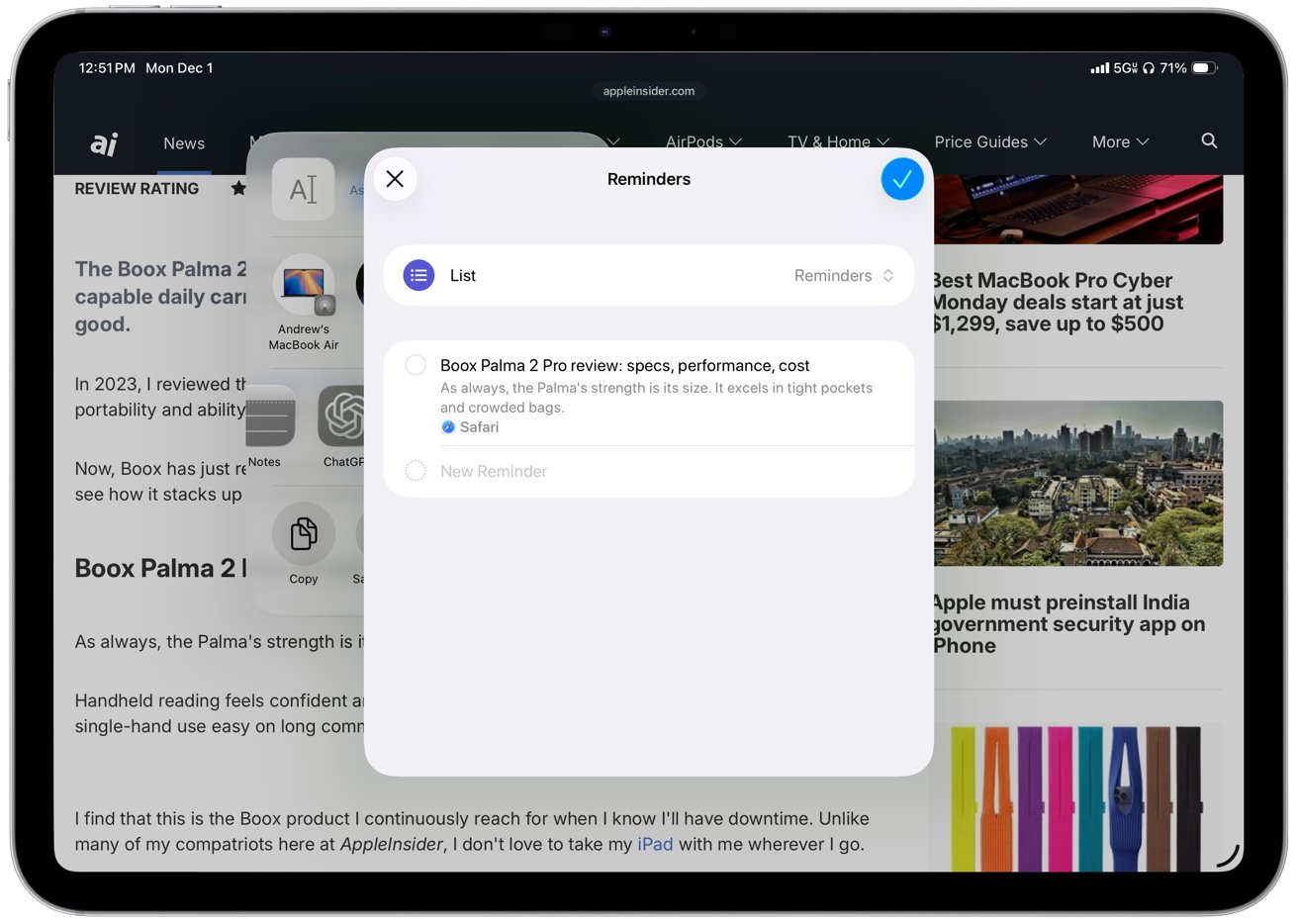
Suggested reminders appear before being added to a list
Longer paragraphs still work, though they may need light editing after import. In most cases, the process is faster than creating reminders manually.
How to create reminders from text on Mac
On a Mac, the process follows the same idea. Open a document, webpage, or email, then highlight the portion you want to extract.
- Open a document, webpage, or email with information you want to keep.
- Highlight the text you want analyzed.
- Right-click or use the Share button in the toolbar.
- Choose Reminders from the menu.
- Review the suggested tasks and add the ones you want.
Work documents and research material often convert well because the writing tends to be structured. Larger selections can be grouped automatically into sections.
Best use cases
The biggest advantage appears when a single source contains multiple action items. Long emails with several requests can turn into separate follow-up tasks in one step, instead of being retyped or mentally tracked.
Recipes, travel plans, and project notes also convert well because they already resemble lists. Apple Intelligence handles batch extraction more efficiently than manual entry, especially when switching between apps would slow things down.
Simple one-off reminders still work, but the time savings are smaller. The feature matters most when tasks arrive faster than they can be organized.
Tips for better results
Selecting only the most relevant portion of text gives Apple Intelligence a clearer signal and usually improves accuracy. Reviewing suggestions before adding them helps keep lists clean.
Editing reminder titles after import improves readability, especially when the source text uses shorthand or internal jargon. As automated lists grow, sections, folders, and tags become more important for long-term organization.
Supported languages
Apple Intelligence availability depends on language support, which remains more limited than Siri’s. Supported languages include:
- English
- French
- German
- Italian
- Spanish
- Portuguese
- Japanese
- Korean
- Chinese (Simplified)
- Chinese (Traditional)
- Danish
- Dutch
- Norwegian
- Swedish
- Turkish
- Vietnamese
Apple Intelligence for Reminders
Apple Intelligence adds practical automation to Reminders for people who regularly pull tasks out of long emails, articles, and notes. It speeds up capture and reduces friction during organization.
People who build reminders from scattered text will notice the biggest gains. Those who rely mostly on single reminders may see fewer benefits, but the feature remains useful when information starts to pile up.
Trending Products

Apple iPhone 12 Mini – Parent...

Apple iPhone SE 2nd Gen – Par...

Apple iPhone 7 32GB Unlocked AT&...

Apple iPhone 14 – Parent (Ren...

Apple iPhone 12 Pro Max, PARENT (Re...

Apple iPhone 8 64GB Unlocked –...

Apple iPhone 15 Plus 5G (512GB, 6GB...

Apple iPhone 14 Pro (Renewed)

Apple iPhone 15 Pro Max – Par...
