
A hidden setting will speed up Haptic Touch, the fantastic feature that lets you preview links and bring up menus on your iPhone. If you use Haptic Touch all the time, like I do, changing this setting will make your iPhone feel turbocharged. With the settings tweak, your iPhone will bring up handy shortcuts — hidden actions, content previews and contextual menus — in a flash. And that saves you precious time as you tap around your screen. Alternatively, if you find Haptic Touch annoying and trigger it accidentally all the time, you can slow down the time needed to activate the gesture. That way, a tap won’t be mistaken for a tap-and-hold.
Speed up Haptic Touch on your iPhone
Haptic Touch, which replaced older iPhones’ hardware-dependent 3D Touch with a long-press gesture and subtle vibration, is one of those great features that many iPhone users utilize all the time, without so much as a thought. Yet few ever tweak Haptic Touch’s behavior to suit how they actually interact with their devices.
Haptic Touch lets you peek at links, summon contextual menus, and trigger shortcuts across iOS. But the feature’s timing and responsiveness can make the difference between Haptic Touch feeling frustrating or utterly delightful.
Our quick guide shows how to customize Haptic Touch for speed or precision, turning a subtle iPhone tweak into a seriously slick way to use your phone faster and more intuitively.
Table of contents: Speed up Haptic Touch on your iPhone
Speed up Haptic Touch
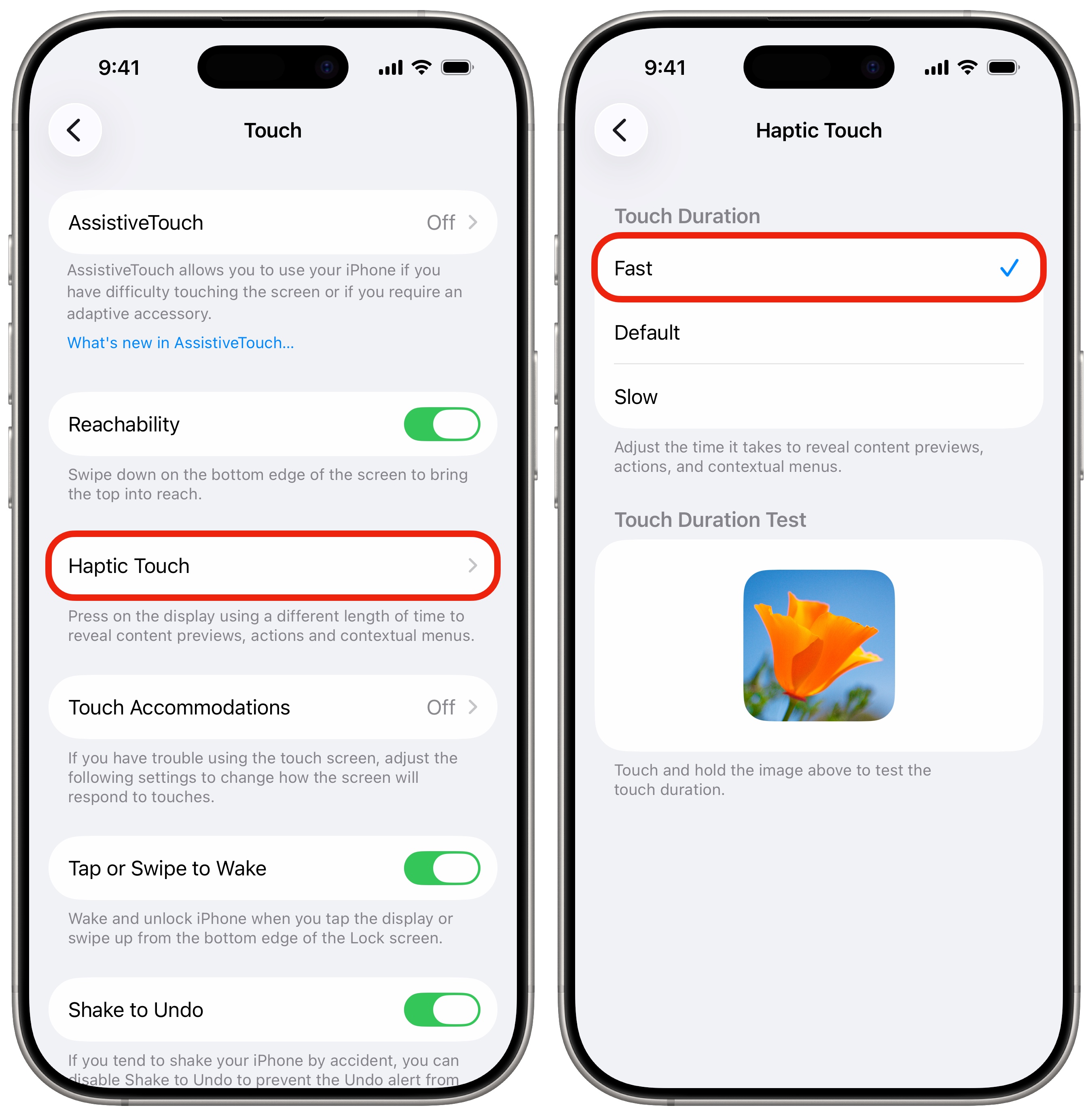
Screenshot: D. Griffin Jones/Cult of Mac
To change the Haptic Touch speed on your iPhone, go to Settings > Accessibility > Touch > Haptic Touch. There you will find three options: Fast, Default and Slow. If you set Haptic Touch to Fast, your iPhone will react to the tap-and-hold gesture more quickly. I think this setting is great. It makes the gesture feel more fluid and instantaneous, like a layer of friction has been removed.
In the Settings app, you’ll also find a Touch Duration Test. Tap and hold on the flower picture to preview your current Haptic Touch setting. Or, if you’re reading this article on an iPhone, just tap and hold on this link to get a feel for how long Haptic Touch takes to activate.

If you don’t like the faster Haptic Touch setting, or even the default one, you can choose the slowest one. This will ensure your phone doesn’t confuse a normal tap for a tap-and-hold. If you find yourself activating Haptic Touch all the time when you don’t mean to, this might come in handy for you.
Places to try Haptic Touch
The iPhone’s Haptic Touch feature proves very convenient and works across iOS. However, it’s not obvious if any given button or feature on your iPhone screen will do anything special if you long-press it. You kinda need to go for it and see if the tap-and-hold gesture does anything.
Here are a few places you can use Haptic Touch on your iPhone:
- In Safari, you can long-press on a link to get a preview of the page. Tap on the preview to open the link.
- Also in Safari, you can long-press on the address bar to quickly close a tab from the menu.
- In Messages, long-press on a conversation to see a bigger preview. (Doing this doesn’t send a read receipt until you tap into the message.)
- On your iPhone’s Home Screen, app icons often offer a few shortcuts in the context menu that shows up when you long-press the icon. Safari, for example, lets you create a new tab or a new private tab, among other things. Messages lets you jump straight into your top pinned conversations. Reminders lets you create a new task inside one of your lists.
More iPhone pro tips
We originally published this article on iPhone Haptic Touch on October 10, 2023. We updated it with the latest information on August 1, 2024, and December 29, 2025.

D. Griffin Jones is a writer, podcaster and video producer for Cult of Mac. Griffin has been a passionate computer enthusiast since 2002, when he got his first PC — but since getting a Mac in 2008, he hasn’t turned back. His skills in graphic and web design, along with video and podcast editing, are self-taught over 20+ years. Griffin has a bachelor’s degree in computer science and has written several (unpublished) apps for Mac and iOS. His collection of old computers is made up of 40+ desktops, laptops, PDAs and devices, dating back to the early ’80s. He brings all of these creative and technical skills, along with a deep knowledge of Apple history, into his work for Cult of Mac.
Trending Products

Apple iPhone 12 Mini – Parent...
Apple iPhone SE 2nd Gen – Par...

Apple iPhone 7 32GB Unlocked AT&...
Apple iPhone 14 – Parent (Ren...
Apple iPhone 12 Pro Max, PARENT (Re...
Apple iPhone 8 64GB Unlocked –...
Apple iPhone 15 Plus 5G (512GB, 6GB...
Apple iPhone 14 Pro (Renewed)

Apple iPhone 15 Pro Max – Par...
